

Two-Factor Authentication
-
Register through SmartHub App
To set up two-factor authentication for your SmartHub account, follow these easy steps. If not registered to SmartHub refer to Setting up an account.
First, Login to your SmartHub account via the SmartHub Mobile App.
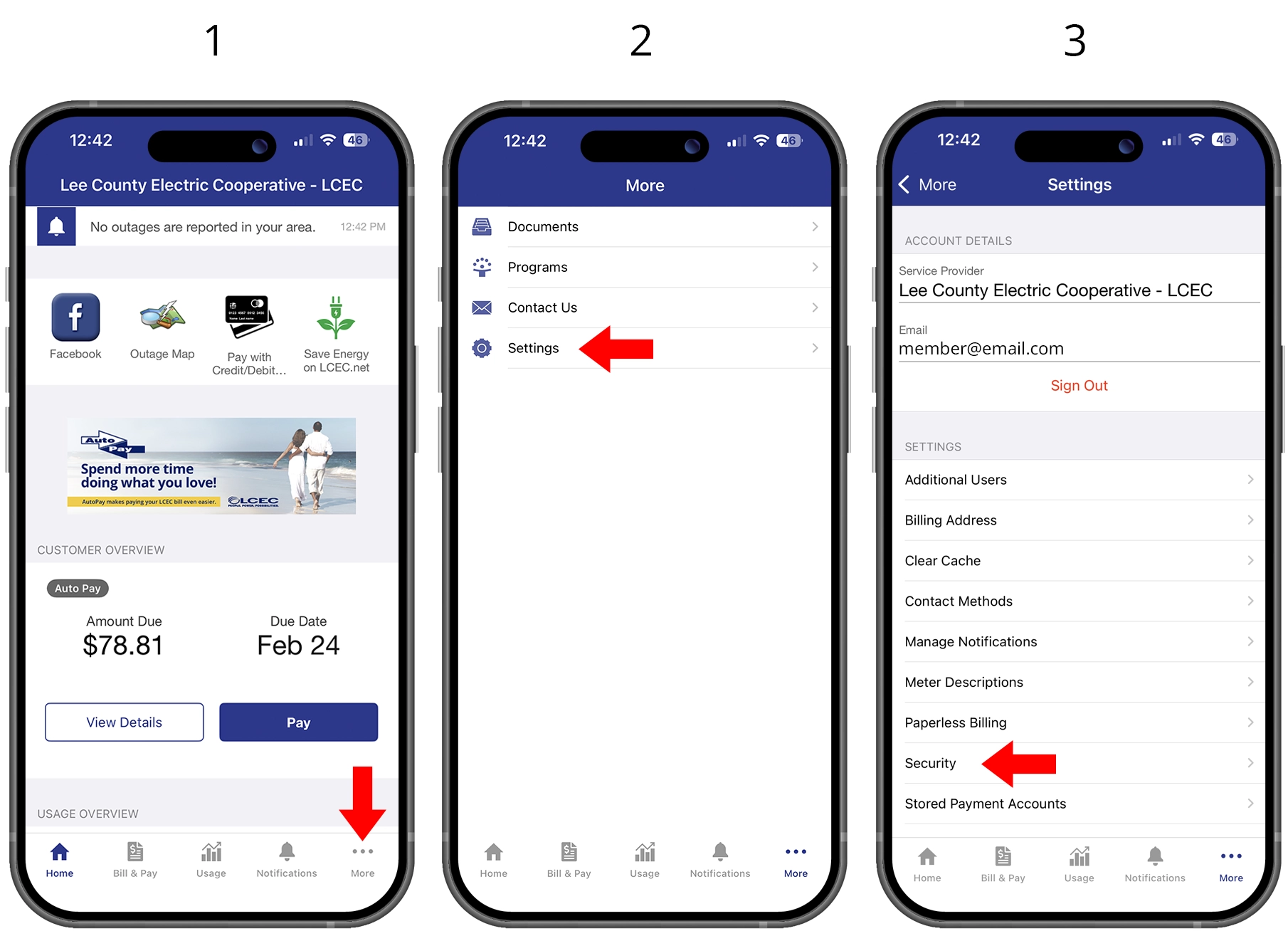
- Select "More" at the bottom of the home screen.
- Select "Settings"
- Select "Security"
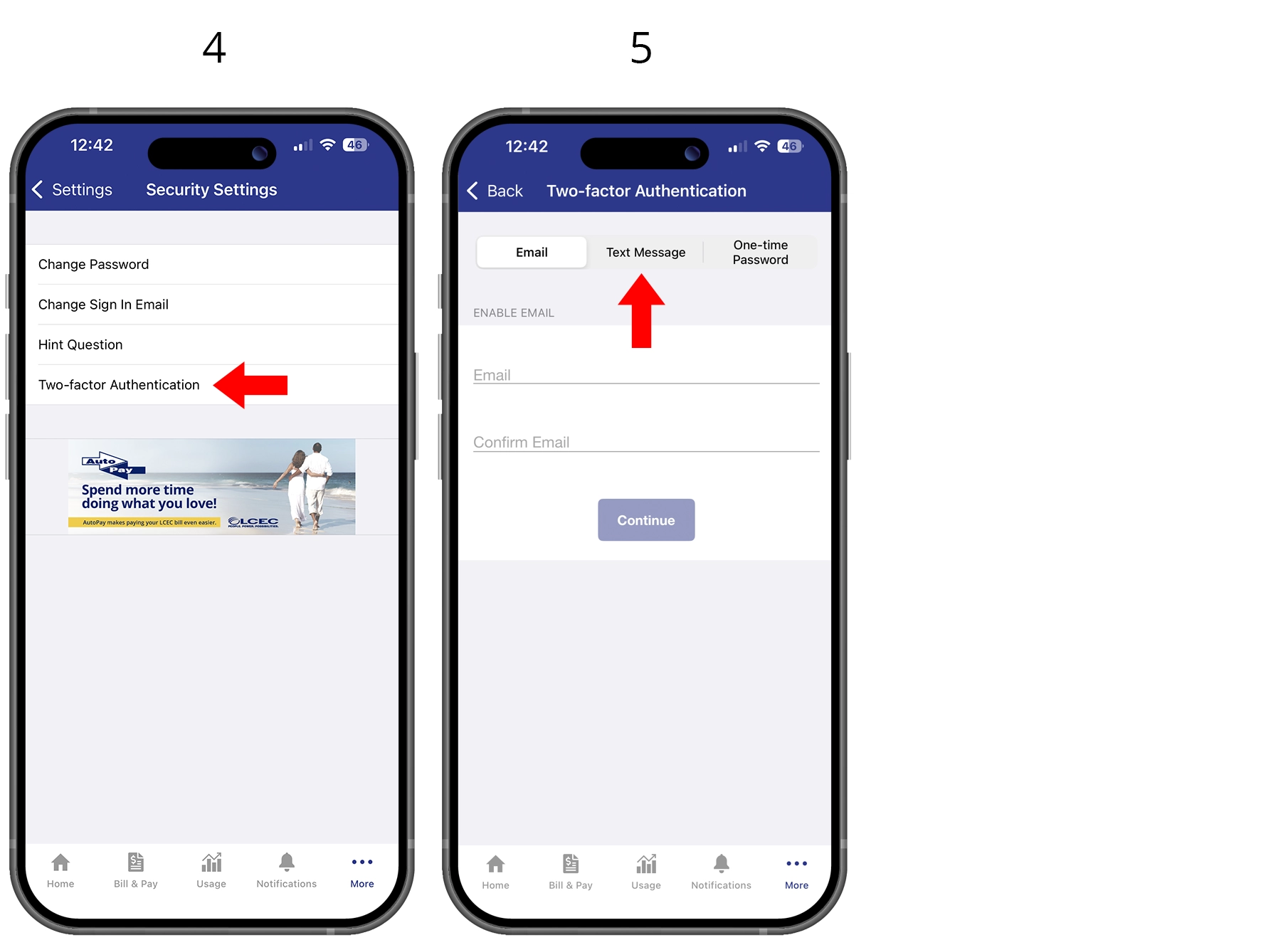
- Select "Two-factor Authentication."
- Select desired method of contact and follow the instructions on the screen.
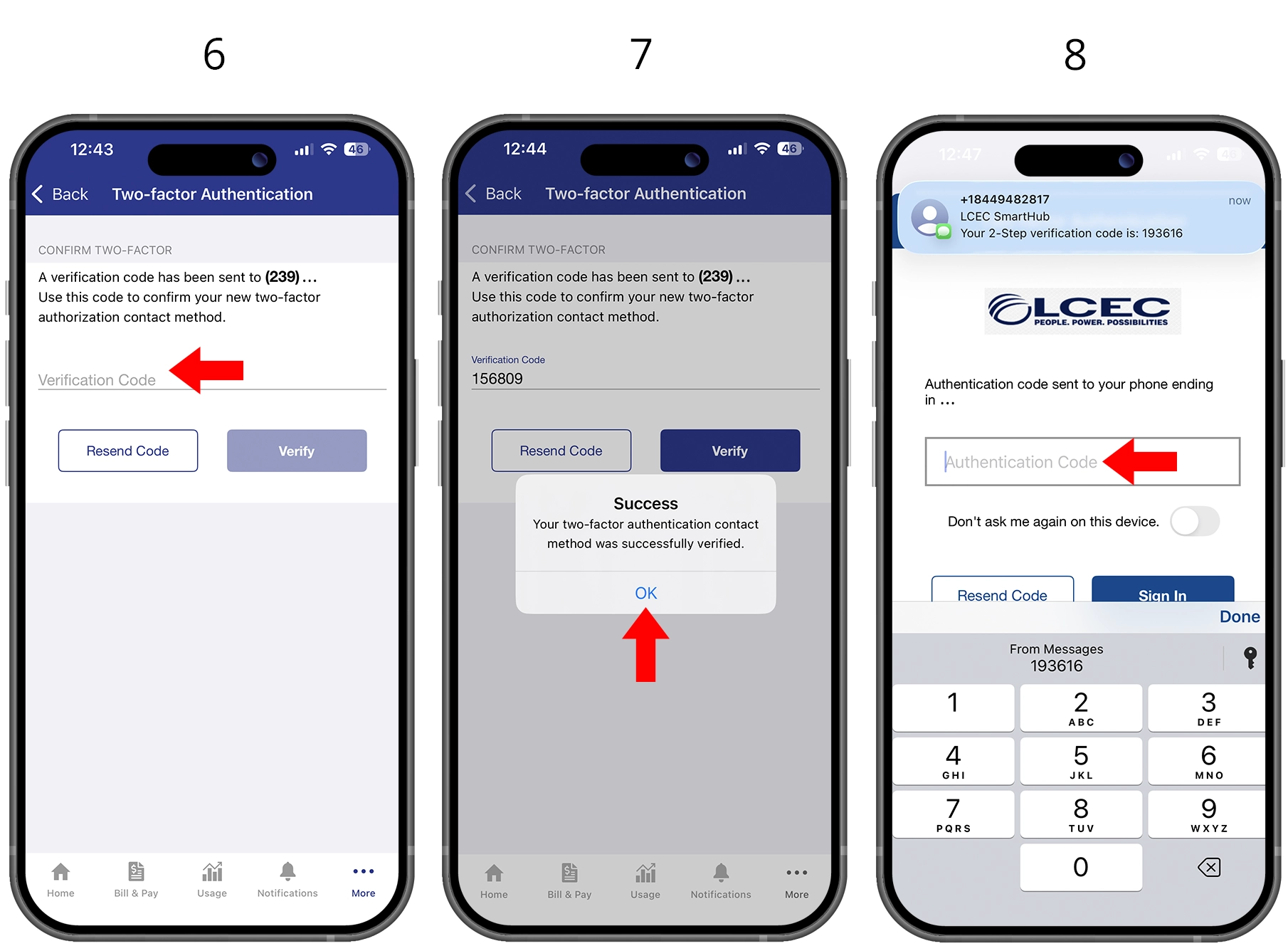
- You will receive a notification from the desired contact method with a verification code. Enter the generated code in the SmartHub "Verification Code" box and click "Verify."
- Select “OK” on the “Success” prompt.
- Upon next login to SmartHub, members will be prompted for a two-factor code based on chosen contact method. Receive and enter “Authentication Code” and click “Sign In.”
-
Register through SmartHub Web
To set up two-factor authentication for your SmartHub account, follow these easy steps. If not registered to SmartHub refer to Setting up an account.
First, Login to your SmartHub account via SmartHub Web.
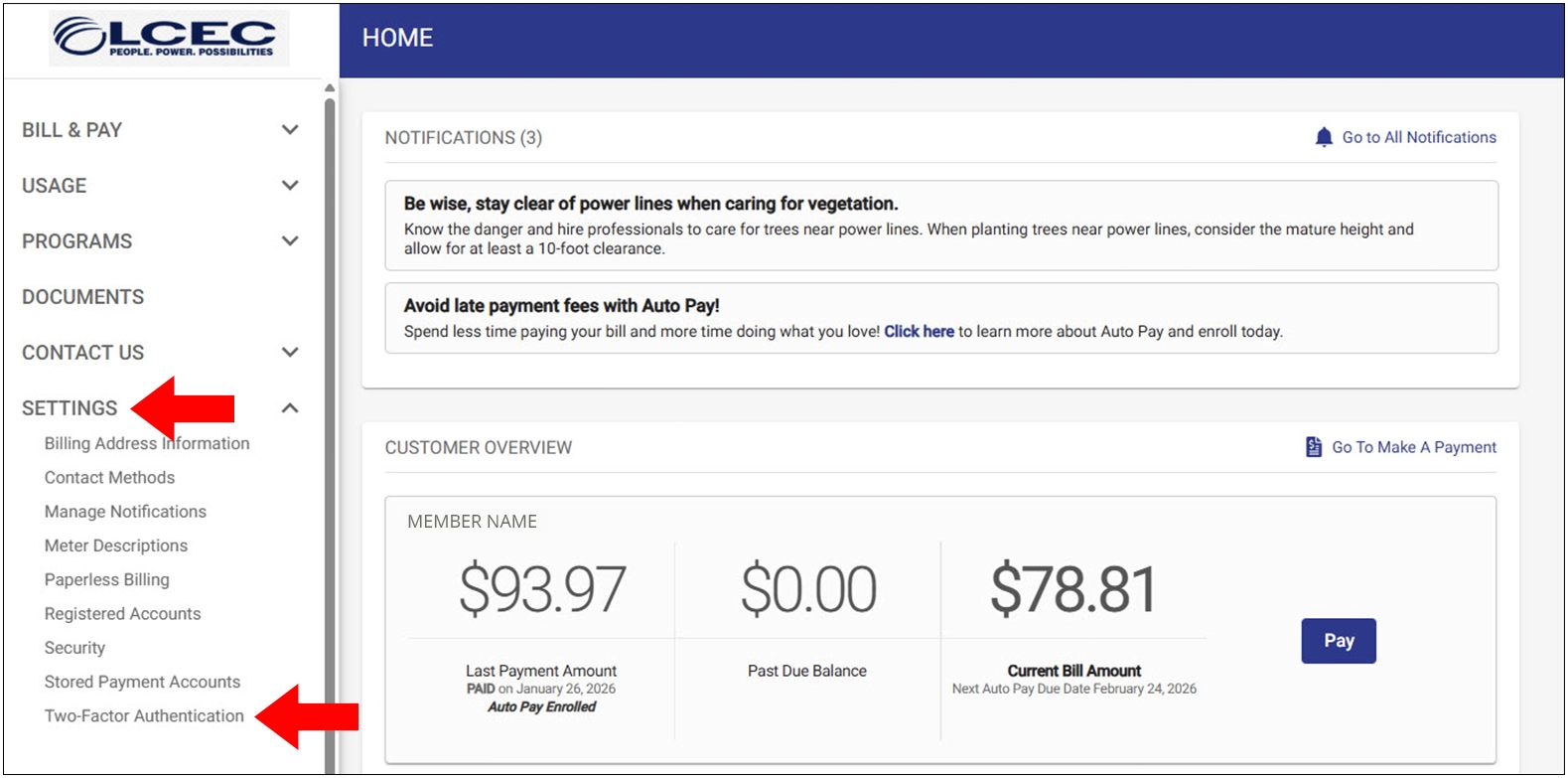
- Select the "Settings" tab from the lefthand menu bar and select "Two-factor Authentication."
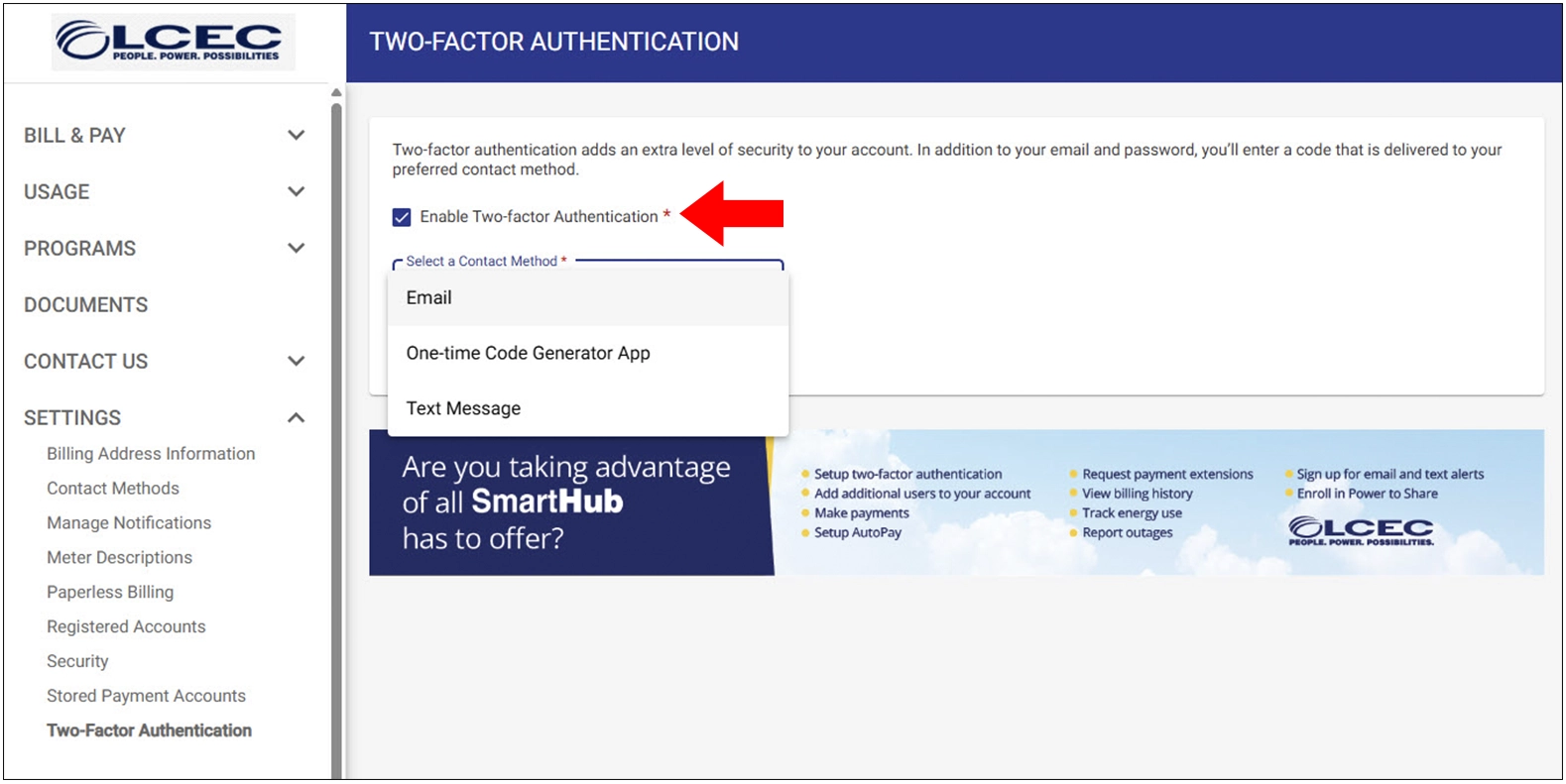
- Check the box to “Enable Two-Factor Authentication” then select desired method of contact and follow the instructions on the screen.
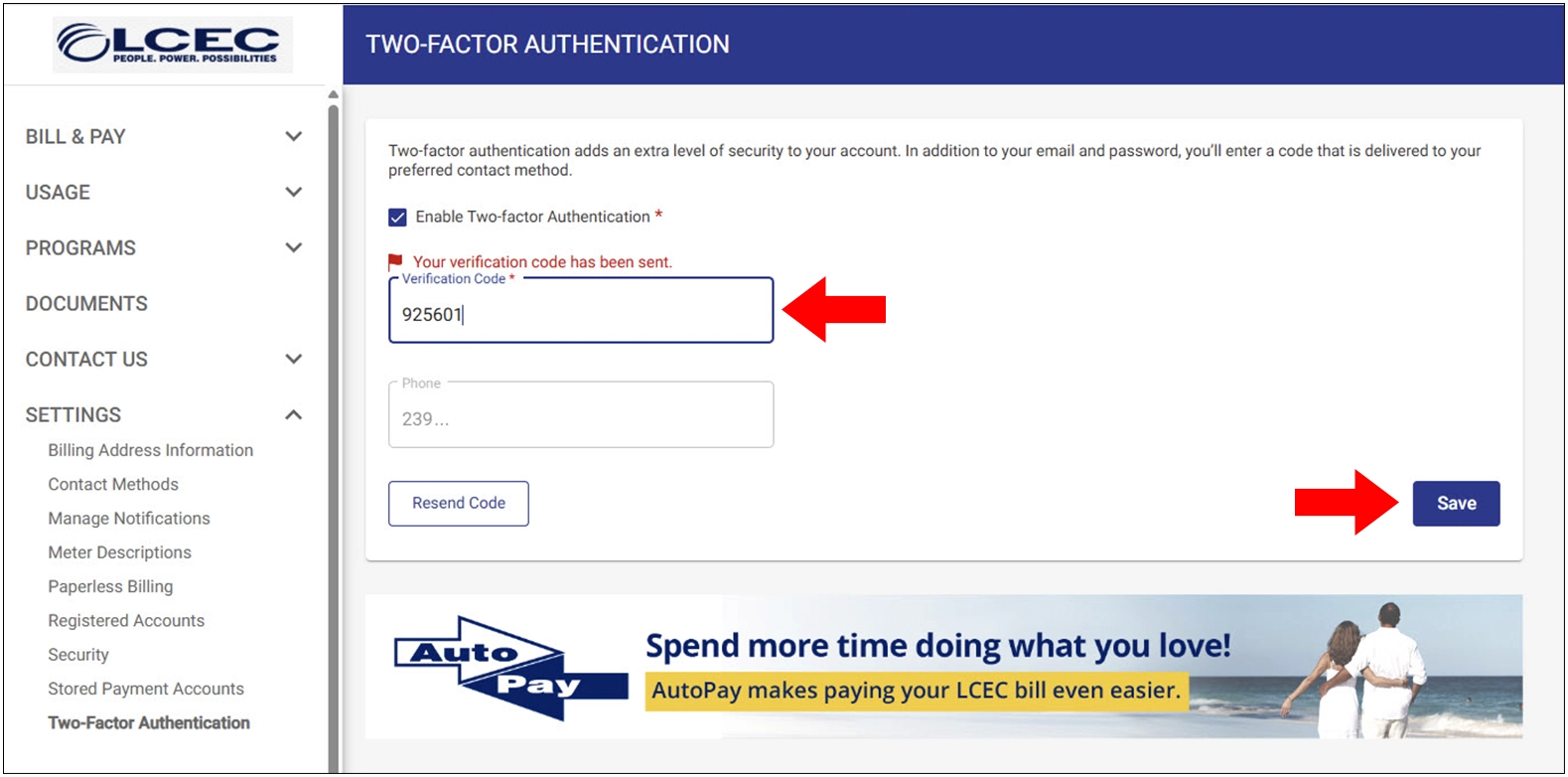
- You will receive a notification from the desired contact method with a verification code. Enter the code in SmartHub and click "Save."
- Upon your next login to SmartHub, members will be prompted for a two-factor code based on chosen contact method.

- After you receive and input the "Authentication Code," click "Sign In."
