
Adding Additional Users
-
Add additional users through SmartHub App
To add additional users to your SmartHub account, follow these easy steps. If not registered for SmartHub refer to Setting up an account.
First, Login to your SmartHub account via SmartHub Mobile App.
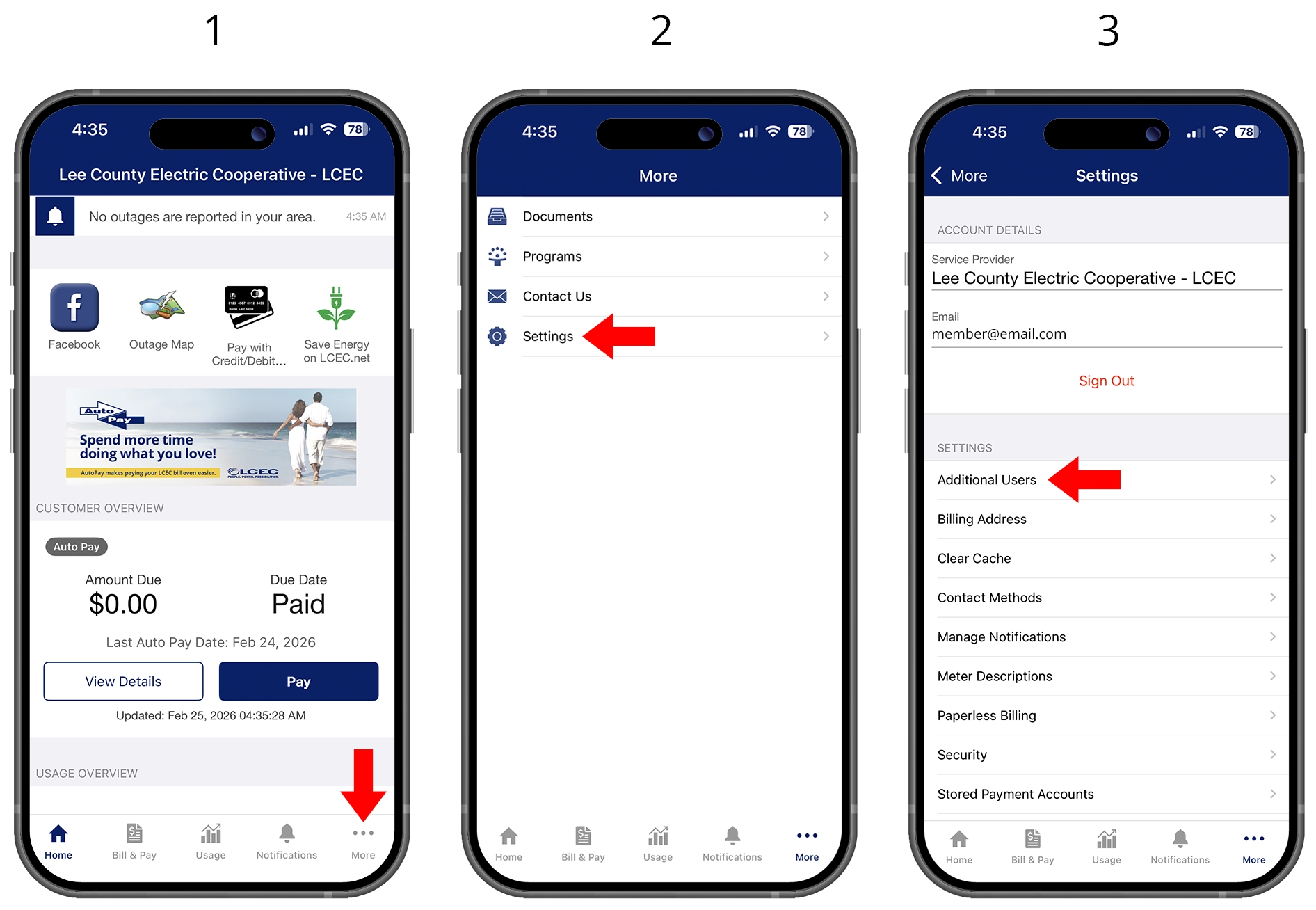
- Select the "More" at the bottom of the home screen.
- Select "Settings."
- Select "Additional Users."
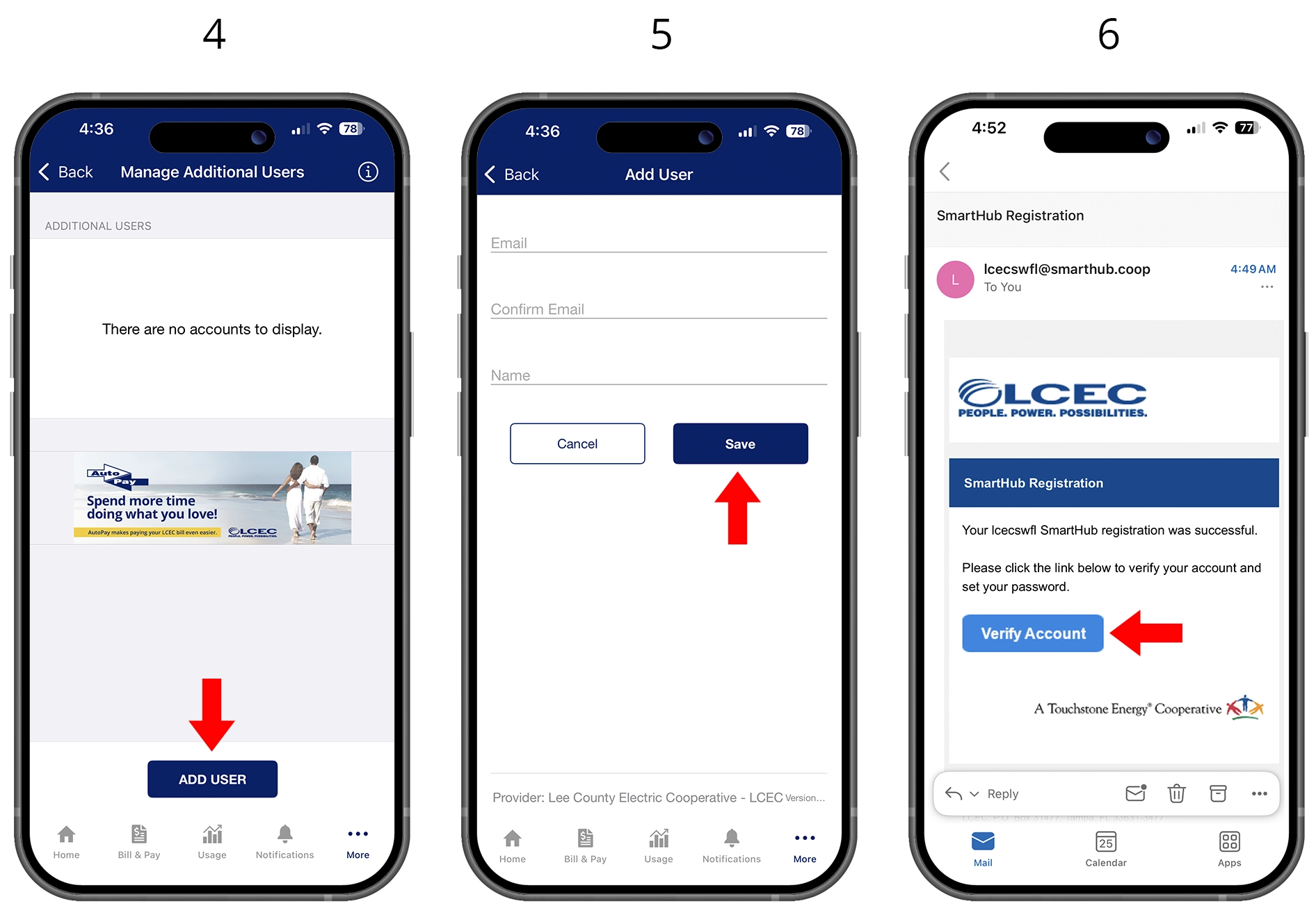
- Select "Add User."
- Fill out and confirm the email address and add a name for the additional user. Click "Save."
- The additional user will receive a SmartHub Registration email. The user will click "Verify Account."
*If the email is already linked to a SmartHub account, it cannot be used for an additional user.
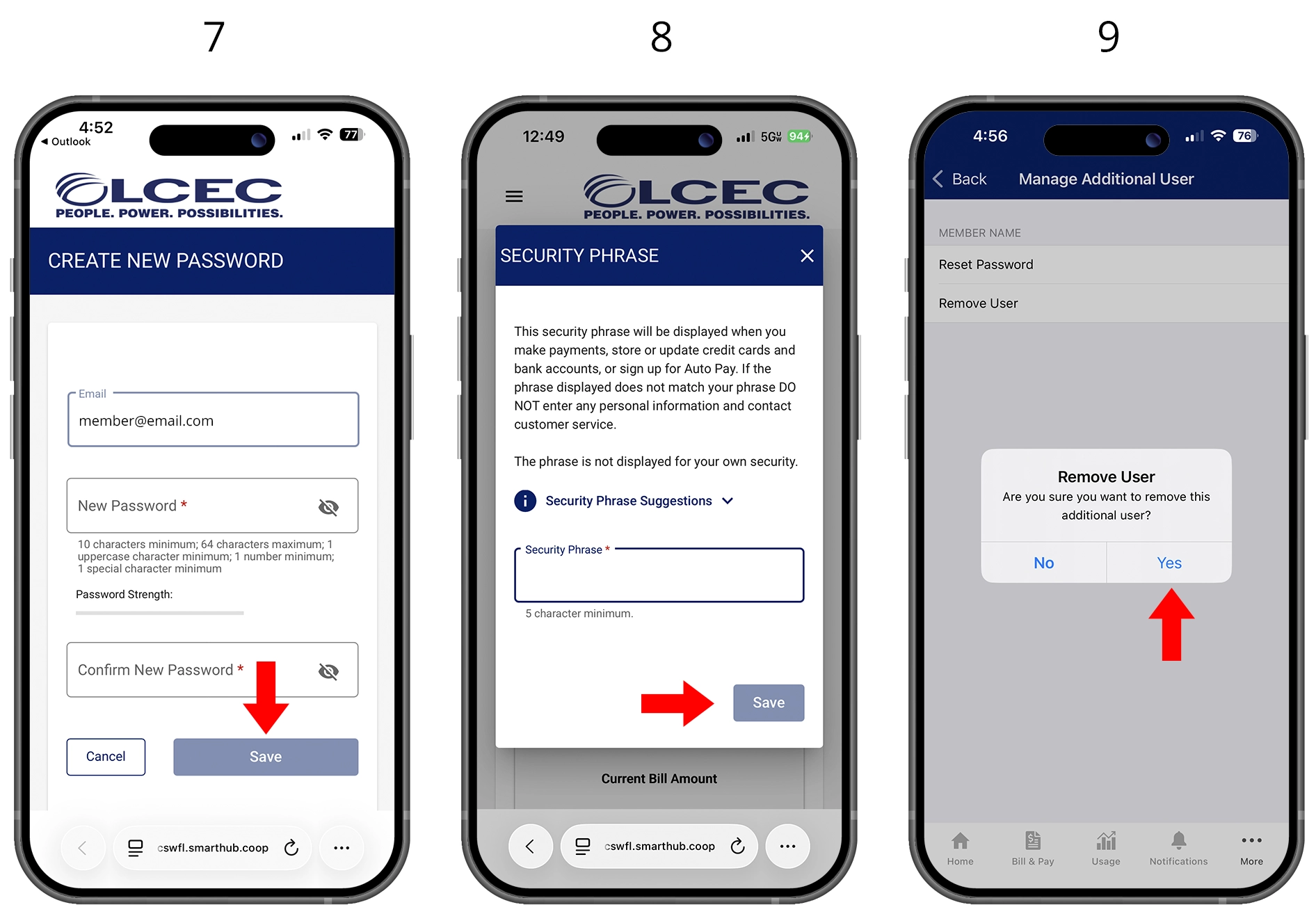
- The user will be prompted to enter and confirm their own password. Once entered, click "Save" and "Accept" the SmartHub Terms and Conditions.
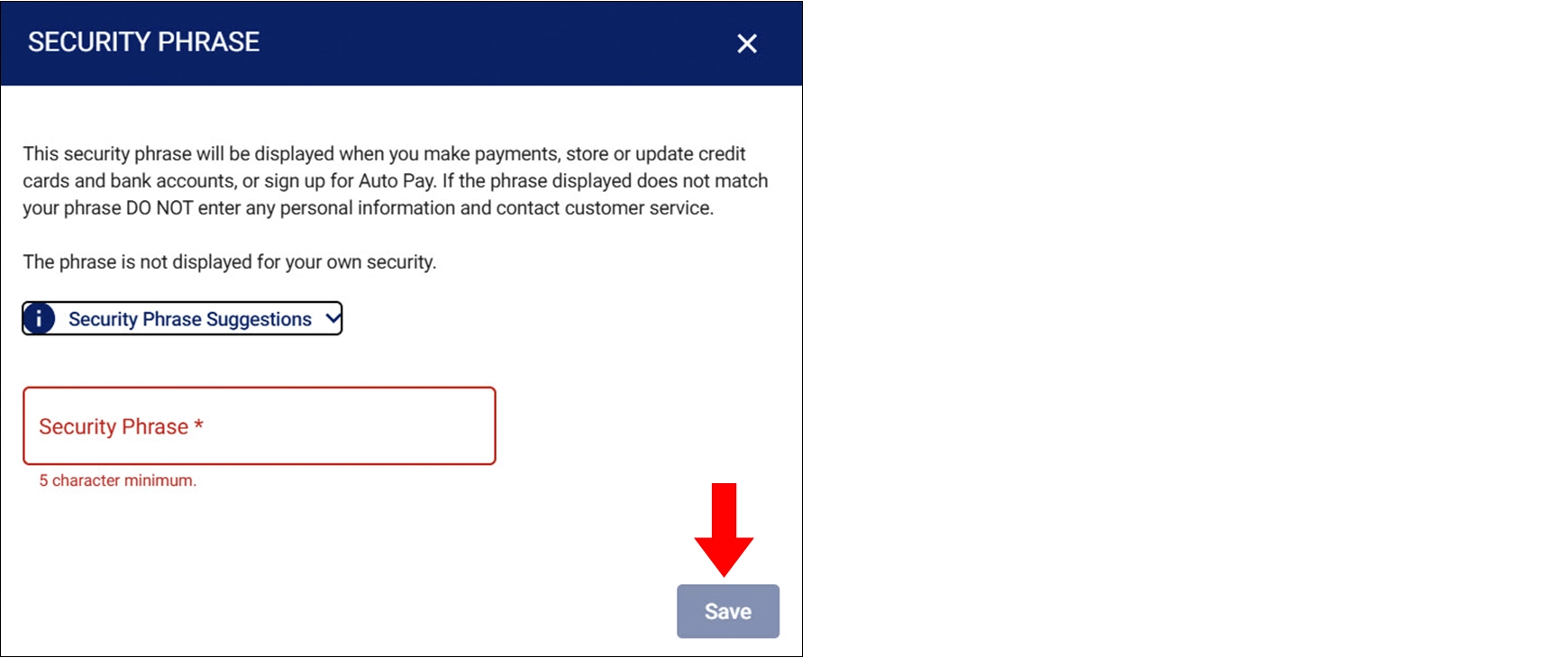
- Next, the additional user will be prompted to select a security phrase. Once selected, click "Save" and access SmartHub.
- Primary account holders can delete additional users at any time by going back to the "Additional Users" screen and clicking the added user information and selecting "Remove User."
-
Add additional users through SmartHub Web
To add additional users to your SmartHub account, follow these easy steps. If not registered for SmartHub refer to Setting up an account.
First, Login to your SmartHub account via SmartHub Web.
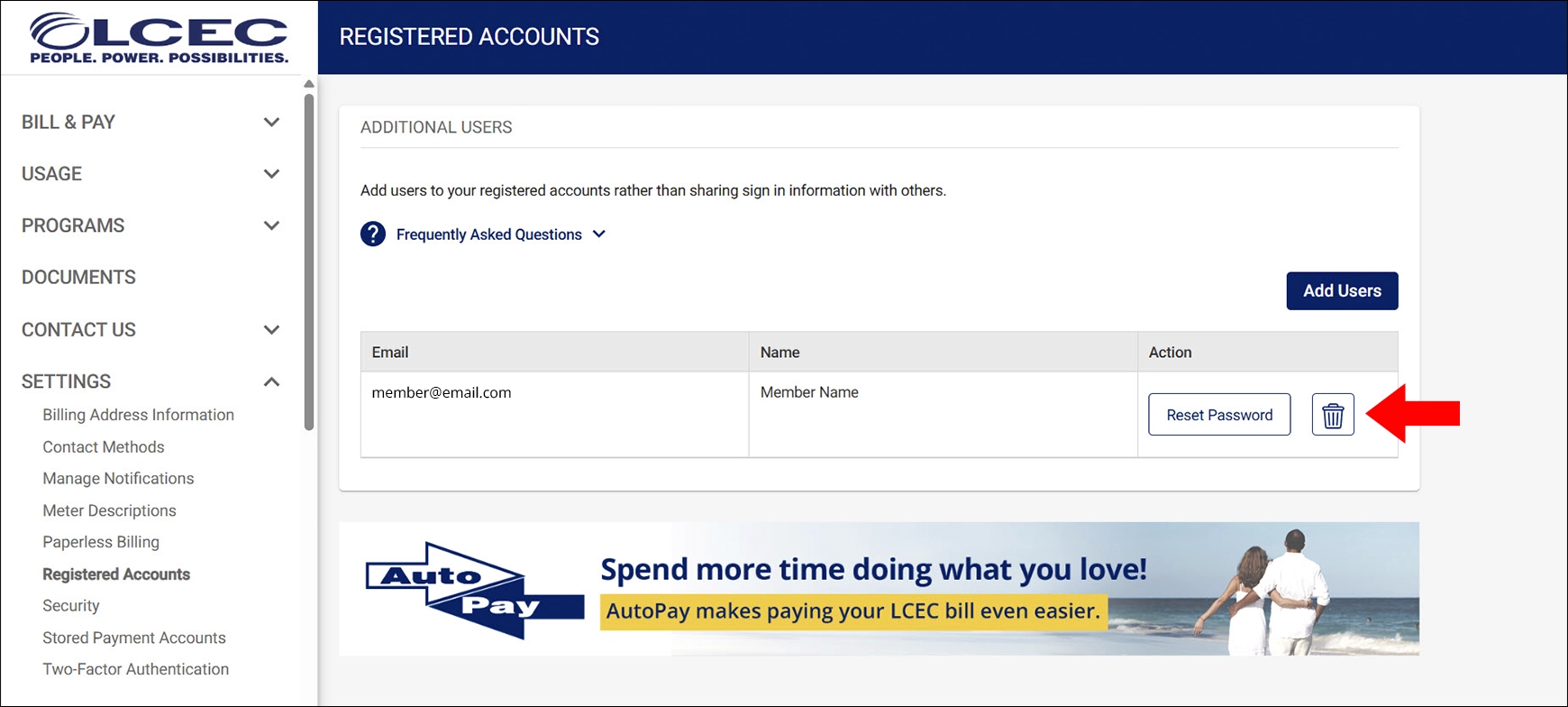
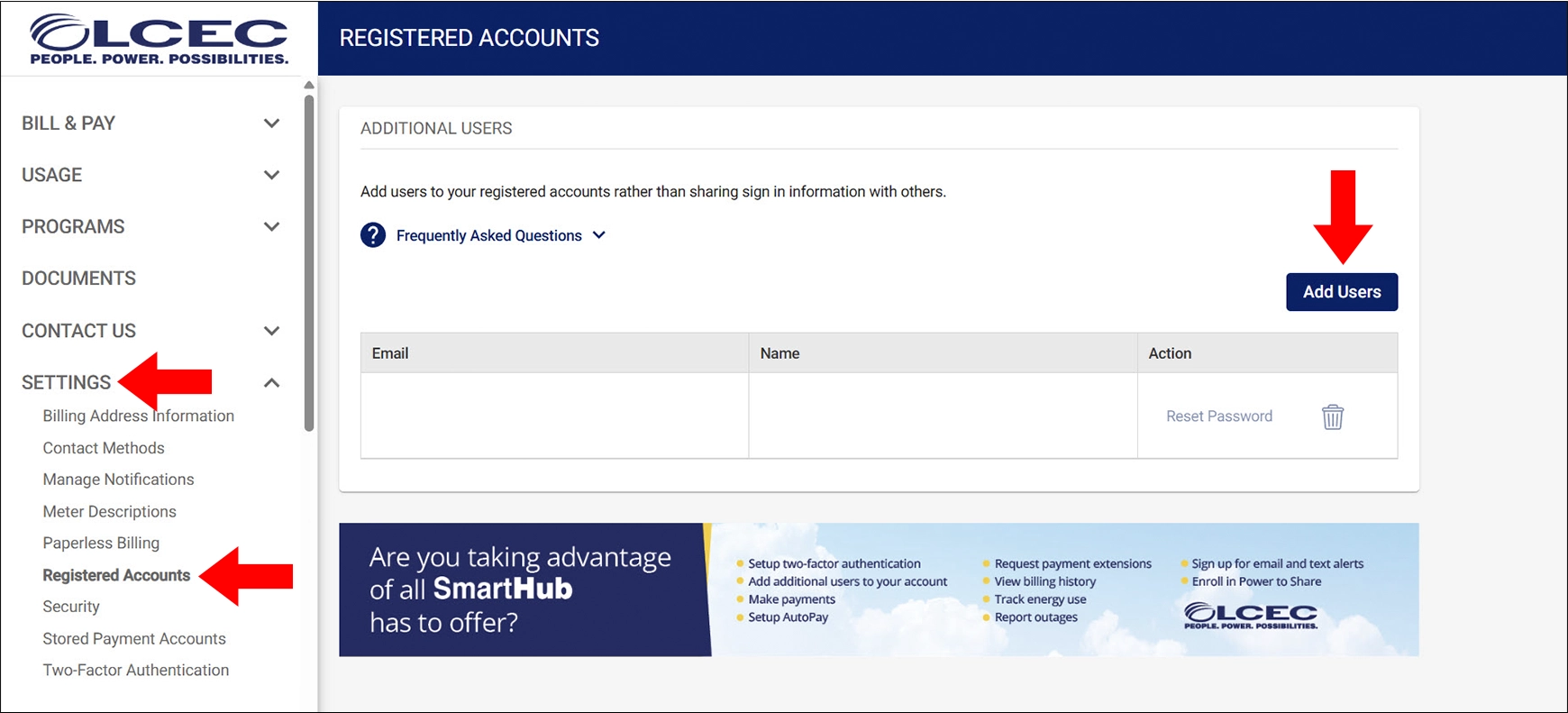
- Select the "Settings" tab from the left-hand menu bar and select "Registered Accounts." On the "Registered Accounts" screen, click "Add Users."
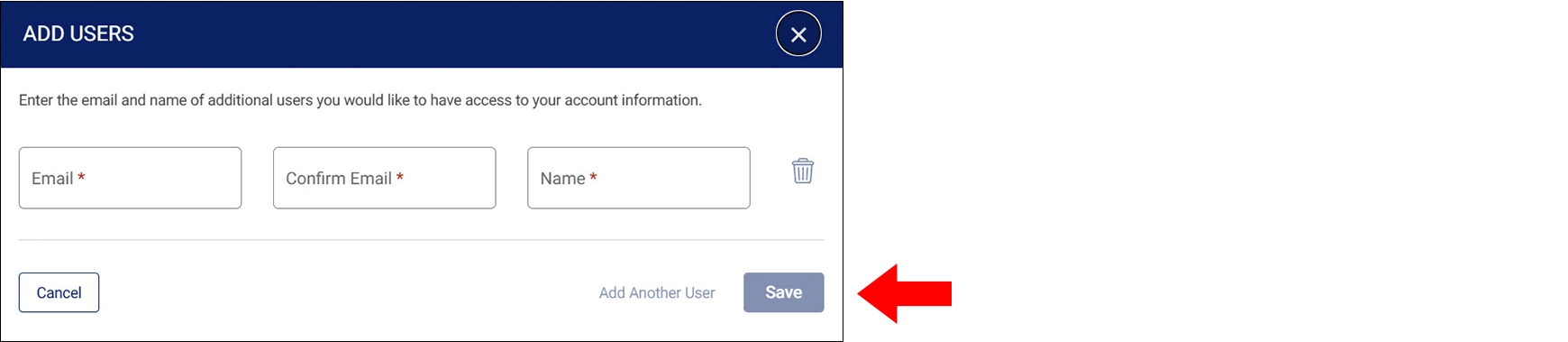
- Fill out and confirm the email address and add a name for the additional user. Click "Save." *If the email is already linked to a SmartHub account, it cannot be used for an additional user.
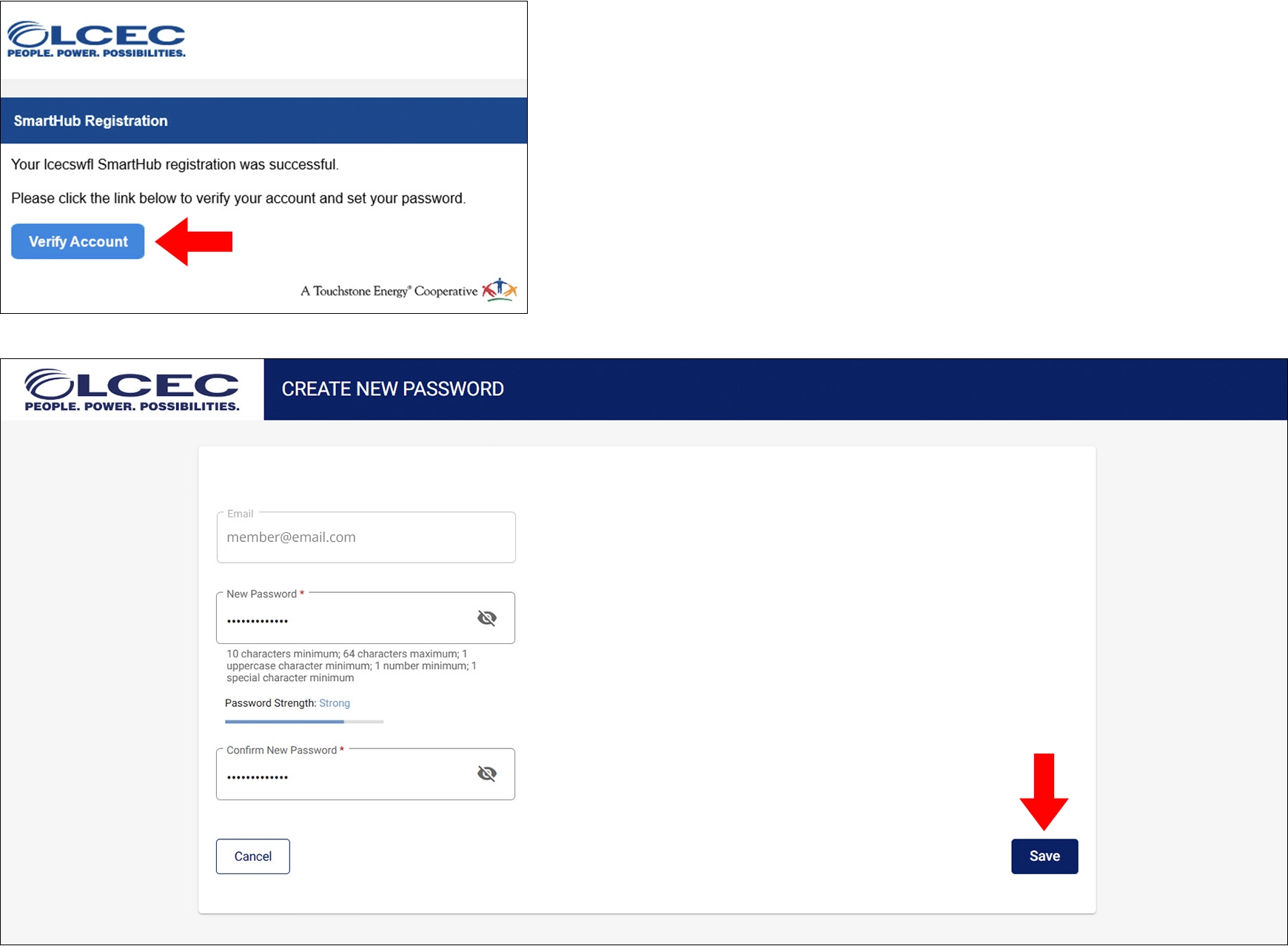
- The additional user will receive a SmartHub Registration email. The user will click "Verify Account", then will be prompted to enter and confirm their own password. Once entered, click "Save" and "Accept" the SmartHub Terms and Conditions.
- Next, the additional user will be prompted to select a security phrase. Once selected, click “Save” and access SmartHub.
- Primary account holders can delete additional users at any time by going back to the "Registered Accounts" screen and clicking the trash can icon next to the additional user information.